Author Archives: jay

Anti-SPAM protection – reducing SPAM received in your inbox

For your convenience and safety we provide the option to enable Anti-SPAM protection for any mailbox that you have with us.

This is an automatic protection based on multiple criteria, which can filter all incoming mail and protect your email account(s) from different types of SPAM (including virus-infected mail attachments).

There are 3 options to activate the Anti-SPAM Protection option for a certain mailbox:

OPTION 1: Enable Anti-SPAM Protection for several email accounts.

Go to the Email Manager menu in your Control Panel (Email > Mailboxes tab).

There you will see a list of all existing email accounts.

You can select each of these email accounts (put a check mark in front of it). Above  the list of mailboxes, there are rows with identical buttons – the second one is the Anti-SPAM button.

OPTION 2: Using the icon located in Actions column. If you want to enable the Anti-Spam option for certain mail you must click on the red icon. Once the option is enable, the icon will be green.

Set anti-spam protection

Once you select the desired email account(s) and click on the Anti-SPAM button, you will be forwarded to a page where you will be able to select the level of protection and choose between two SPAM message options – to delete or to forward them to an e-mail address specified by you.

IMPORTANT: The higher the level of protection you choose, the better the chance of rejecting a valid e-mail message that you actually wish to receive will be.

It is recommended that you start off with a lower level or use the option to redirect the SPAM messages so that you can review them manually.

OPTION 3: Go to Mailboxes > Spam section of your Contron Panel and click on the “Activate SPAM Protection” button.  From this section, you can activate and control the Anti-spam protection levels for your email accounts.
Anti spam protection

How to create a mailbox?

You can create mailboxes at any of your hosted domains.

To create a mailbox go to Email > Mailboxes in your Control Panel. On the right you see a Create A New Email Account button.

After you click on it, you see several text boxes that you need to be filled in.

Email address – Here you enter the name for your mailbox, which is the part of your email address before the @. Next you choose one of your hosted domains from the drop-down menu on the right. The domain would be the part of your email address after the @.

Password – Here you need to enter the password for your mailbox. You will be using this password to login to the webmail and also when you setup your email account in Outlook and other email clients. You can enter a password using the symbols a-z and 0-9. The password should be between 3 and 32 symbols long. You can use a random password by pressing “Generate password” button.

Forward email – If you select this option, you will be able to enter an email address where all messages received in your new mailbox will be forwarded to. There is also a “Save a copy” option. If you select it, a copy of every message that is forwarded will also be saved in this mailbox. You will be able to setup email forwarding later.

Use Autoresponder – Select Auto-Reply option if you want to enter an auto-reply message, which would be sent back to anyone who sends you an email. Usually this option is used to setup a message informing people that you are on vacation, for example, so it is unlikely that you need this right now. You can setup an auto-responder at any time. (see: How to set an auto-reply message to my e-mail account?)

When you are ready, you can click the Add a Mailbox button to create the mailbox. It will appear in the list of Mailboxes.

You may also find these articles helpful:

High CPU usage caused by WordPress

WordPress is a content management system written in PHP. This means that the content it serves is generated dynamically by a set of PHP scripts: every time a visitor arrives at your website, WordPress processes the request and generates a response.

Clearly, responding to a request implies a certain use of server resources: one has to look at the request itself, determine what the visitor wants to access, fetch it from the database, generate the HTML response, and so on.

With this in mind it is not difficult to find out what are the reasons why we can see high CPU usage on the server:

– You get too many requests. If a lot of users come to your website at the same time, or you receive many illegitimate requests (someone’s probably attacking your site), WordPress will have to process all those requests and, therefore, the use of server resources will increase.

– Requests are slow to resolve. If you have a lot of plugins installed or some of your plugins is inefficient for whatever reason, all the requests you get will take longer than needed, because WordPress will run a lot of inefficient code.

Analyzing the problem

First you need to locate the website which is causing the problem, especially if you have more then one WordPress sites installed.

For the purpose, please check the Statistics block on the hosting control panel home page (Dashboard). If you sort the sites by Hits you can easily locate the most visited one.

Then you can find more details about the traffic and if there is any unusual behavior from the Web Statistics section of your control panel. 

Another great tool to locate a high resource consuming website is the MySQL Stats 

After that you have to identify why CPU usage has increased on our website. Has the number of requests to our website increased? Is it now slower to serve individual requests?

Solving the problem

Once of the first things you should try is to get a cache plugin installed. Once of the most popular ones is W3 Total Cache 

This great plugin also allows you to to setup Memcached for your WordPress for additional optimization. Check out our WordPress with Memcached article. 

Another great tool to analyze your WordPress performance is the Query Monitor plugin. 
It enables debugging of database queries, PHP errors, hooks and actions, block editor blocks, enqueued scripts and stylesheets, HTTP API calls, and more.

Sometimes the reason for high CPU usage could be the so called Bad Bots. Bad bots are any bot that hit your website at no benefit to you. These bots consume server resources especially if they hit your website or wp-login page excessively.

One of the great plugins lately is Wordfence and using this plugin you can easily view and block any of those bots and add an extra layer of security to your WordPress along the way.
Wordfence includes an endpoint firewall and malware scanner that were built from the ground up to protect WordPress.

Please check the official WordPress optimization instructions page as well. 

What is a MySQL database?

MySQL is one of the most popular and widely used Relational Database Management Systems (RDBMS).

Many web applications such as forums, content management systems, etc. use a database to store data (content). The majority of web applications that use databases require a MySQL database to operate.

For example, the popular web applications Joomla, Drupal, osCommerce and WordPress store their data in MySQL databases.

It is almost guaranteed that if your web application (especially those written in PHP) requires the use of a database, then it will need exactly a MySQL database or will at least support MySQL.

To be sure, however, check the technical requirements of the web application. The data in a MySQL database is structured in tables which consist of columns and rows.

Whenever your script (application) needs to access specific data, it “asks” (makes query) the MySQL database for the content of a specific field (the intersection of a column and a row in a table).

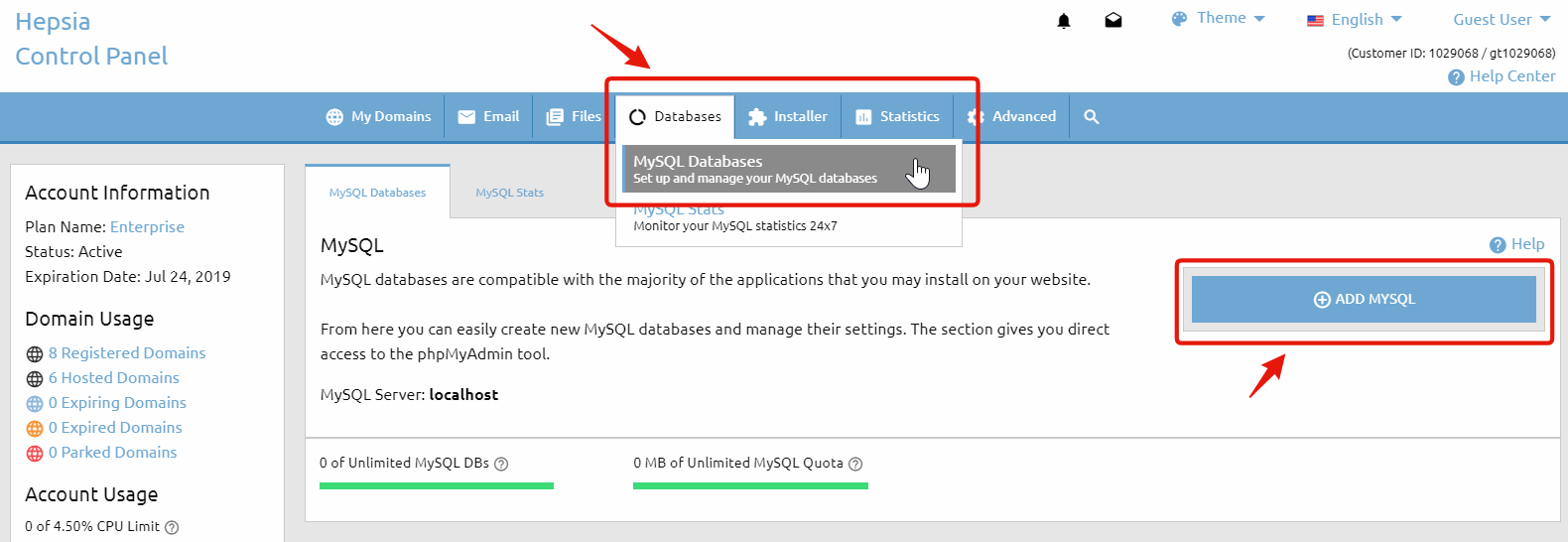
To create a MySQL database in your hosting account, go to the Databases > MySQL Databases section and click on the Add MySQL tab, on the right side of your Control Panel. 


Add MySQL Database

Usually a separate database is created for each web application that you install. Thus, the web applications can be managed easier.

In the MySQL Databases section you can also see a list of all MySQL databases that you have.

Note that the database name and the username are the same. For example, if you have a database whose name is account_database, then the username for the database will be account_database and vice-versa.

On our servers a database can only have one user (that is created by default) and new users cannot be created. The default user of the database has all the priviliges.

When you set up a script to use one of your databases you need the database name and username (which are the same, as mentioned above), the password and the MySQL host/server. You can find the MySQL host under the table with your existing MySQL databases. It is usually localhost.

What is an FTP account and (why) do I need different FTP accounts?

File Transfer Protocol (FTP) is a standard network protocol used to exchange and manipulate files over a TCP/IP based network, such as the Internet.

In other words, FTP offers a convenient and fast way for uploading or downloading files to and from the server.

In order to establish an FTP connection you need to have an FTP account on the server.

For more information you can read the article How to connect via FTP and upload/download files?

The FTP account is basically a set of a username and a password that authorizes access to the server via FTP.

The default FTP account that is created when your hosting account is set up provides access to the main /www/ folder of your web hosting account.

You also have the option to create new FTP accounts and you can do that via the FTP Manager section of your Control Panel (Files > FTP Accounts).

What is more important is that for each FTP account you can set an access path.

This way the newly created account provides access to a certain folder and its sub-folders, while all other folders are inaccessible.

That is useful if you wish to provide access to a third party (for example a web designer) to upload to your account without providing full access to that web hosting account.

What is CPU usage and how do I monitor it?

The Central Processing Unit (CPU), or processor, is the portion of a computer system that carries out the instructions of a computer program.

CPU time is the amount of time a computer program uses while processing CPU instructions.

The CPU time is often measured in seconds, while the CPU usage – by the percentage of a specified overall capacity.

In terms of your web hosting account, CPU usage is the percentage of the capacity of the server’s CPU that your account is generating.

Each web hosting account has a certain CPU usage limit. You can find out the exact CPU limit in the Account Usage table located on the left side of the Control Panel.


Account Usage table - CPU usage

You can monitor the CPU usage of your account via the Statistics > CPU Stats section of the Control Panel.

Once you open that menu, the CPU usage table is displayed. By default, the monthly account usage is displayed.

The columns in the table are as follows:

Day – you can click on each date for detailed information.

CPU Time – the amount of time the CPU has been processing instructions on behalf of your web hosting account.

Execution time – the amount of time applications from your web hosting account have been running.

CPU Usage – the percentage of the capacity of the server’s CPU used up by applications from your web hosting account.

Average Memory – the server memory used up by applications from your web hosting account during the execution time.

Processes – the number of processes that have been running during the reviewed period.

If you click on a particular day, you will see the same set of statistics displayed on an hourly basis.

It is recommended that you review other articles about CPU usage that provide detailed information on how it is calculated, how it affects the account and how to reduce it.

You also have the option to purchase additional CPU usage. For more information, please review the article “How can I upgrade my hosting plan?“.

What is the difference between MySQL and PostgreSQL?

As a client hosted on our servers, you can choose between two database solutions – MySQL and PostgreSQL (not all hosting plans support PostgreSQL, though).

First, let’s consider the similarities.

Both databases are open-source, supported by contributors and developers on a voluntary basis and are offered free of charge. Both are relational database management systems (RDBMS), PostgreSQL being focused on the object-oriented database model.

MySQL gets the first open-source database market share spot, while PostgreSQL occupies the third position, lagging behind Microsoft SQL server, another free SQL developer.

MySQL is the most popular open-source database management systems, due to its ease of use and speed of performance. All the scripts offered by our 1-click Web Apps Installer tool are fully MySQL-compatible.

Also, MySQL is cross-platform, which means that you can design your database application on a Windows or Mac computer and then host it on our Linux OS server with the same success.

IT companies known to use MySQL include Yahoo!, Cisco, Sabre and Slashdot.

Here is why you would want to choose MySQL as your database solution:

  • Broader support;
  • Simpler database design will less coding;
  • MySQL’s replication is much better than the one provided by PostgreSQL and there’s only one way to do it, while PostgreSQL has lots of different replication; systems, thus unnecessarily complicating the process;
  • You can easily create basic web-driven websites;
  • MySQL is faster than PostgreSQL;
  • Data Integrity – PostgreSQL is at a disadvantage because it wants your data to be correct by enforcing constraints. MySQL has limited referential constraints;

PostgreSQL is also a cross-platform database.

It is the choice of developers who want more flexibility and features, currently not supported by MySQL, like async notifications, OO (Inheritance of tables), transactional DDL statements, triggers (supported by MySQL 5.x), foreign keys (supported by MySQL 5.x) and full implementation of sequences.

Additionally, if you are planning a migration from Oracle, DB2 or MSSQL, PostgreSQL follows many of the SQL ANSI standards, thus allowing the creation of complex SQL commands, available with the proprietary database solutions.

To summarize, the need for the following components should draw your attention to PostgreSQL:

  • Complex rule sets (business rules, for example)
  • Use of procedural languages on the server
  • Complex database design
  • Use of geographical data

More specific comparative tables are provided at the following addresses for further reference:

http://www.postgresonline.com/journal/index.php?/archives/51-Cross-Compare-of-SQL-Server,-MySQL,-and-PostgreSQL.html#extended

How do I backup my files manually?

First, make sure that you know where exactly the files for your website are located. Usually each domain/subdomain points to a folder with the same name as the domain/subdomain located inside the /www/ directory in your hosting account.

So, if you want to back up the files for my-best-domain.com, they are most likely located in /www/my-best-domain.com/

Here is how you can back up your files:

Option 1: Go to Files > File Manager.
Select the folder(s) and/or the file(s) that you want to download and click on the Download button (), which is located at the top of the files list or click right button of the mouse to open the drop-down menu. Choose an option and  within a few seconds a windwow appears and asks you if you wish to save the file.

Choose “Save As…” and point the location on your computer where the file should be saved.
You get an archive, which contains all the file(s) and/or folder(s) that you have selected.

Option 2: You can back up your files via FTP. To do this, connect via FTP, using your main FTP account. Once the connection is established, you will see a list of all the domain folders.
Right click on the desired folder, then choose Download*. Your files will start downloading on your computer.

* The exact download process may vary depending on the FTP client that you use. For further information, please refer to: How to connect via FTP and upload/download files?

Option 3: In case you would like to create a .zip archive of your files, but instead of downloading it locally to your computer, you want to keep it on the server, here is what needs to be done:

  1. Go to the File Manager section and access the folder where the files are located. Via the “Create New File/Folder” options at the top, create a folder called “BACKUP“.
  2. Use the “Select all” option, then leave ONLY the folder “BACKUP” unchecked. Copy the files to the newly created folder “BACKUP“.
  3. Create a file called zip.php into the same directory where the folder “BACKUP” is located and include the code:

    <?php exec(“zip -r BACKUP BACKUP”); ?>
  4. Open http://my-best-domain.com/zip.php * in a browser and the script will create an archive of the “BACKUP” folder.

*IMPORTANT: The exact URL of the script depends on the domain and the folder where the files are located. What is important is that you run the script by accessing it through the web.
If you go back to the File Manager section, in the folder where you created the zip.php file, you will find a file called BACKUP.zip – this is in fact the archive with your files” backup.

What is a dedicated IP and do I need one?

An Internet Protocol (IP) address is a numerical label that is assigned to devices participating in a computer network. An IP address serves two principal functions in networking: host or network interface identification and location addressing.

The role of the IP address has also been characterized as follows: “A name indicates what we seek. An address indicates where it is.”

By default, your hosting account and all the websites you have with us use the shared IP address of the server – meaning that many websites on the same server reside under the same IP address.

You have the option to use a dedicated IP address and your domain or subdomain will be the only one corresponding to this IP address.

In other words, the dedicated IP address will be reserved just for you not only on our server and network but worldwide on the Internet.

One of the main uses of dedicated IP addresses concerns the installation of SSL certificates that are required for secure pages.

If you want to have a form on the website that will collect sensitive information, for example, for payments or client accounts, it is advised to have that page secured in order to protect the personal or financial information of your visitors and clients.

Another purpose of using a dedicated IP address is if you need to open your website using the IP address as a URL instead of using the domain or subdomain it is hosted under.

For more information on how to purchase, request and assign a dedicated IP address, please refer to the article How do I get a dedicated IP for my domain/subdomain?

How do I host a domain name?

You can host multiple* domain names in a single hosting account with us. The first domain name that will be hosted in your account is specified during the signup procedure. In order to properly host additional domain names, go to My Domains > Hosted Domains section, click the “Host Domain” button and follow the steps:

1. Make sure the option “Host Domain” is selected.
2. Type in your domain name, e.g. my-best-domain.com

*The domain name must be registered and the name servers must be changed with the ones specified in the Hosted Domains section.

Note: the “Don’t manage DNS” option has to be selected ONLY if you wish to use third party name servers for your domain name and just point it to this account using A record redirection. Otherwise leave that box unchecked and set our Name Servers (NS) for your domain.

Each domain name servers are managed from its Registrar – the company, where you have bought the domain from. If your domain name has been registered from this hosting account, its name servers could be managed from My Domains > Registered Domains.

3. Advanced Settings – this section is optional. Please leave the default settings if you are not sure what to do.

4. Click „Add a Host“ to host your domain in your hosting account.

Once you add the domain name, a red icon will be displayed under the NS column. Once the name server changes propagate (this may require up to 24 hours), the DNS status will be updated as well. More information on that matter is available in the article: Why is there a red icon sign (DNS error) for my domain’s name servers?

* Please have in mind that in order to host additional domain names, you must make sure that your hosting plan can support it. For that you should refer to the Account Usage table available on the left side of the Web Hosting Control Panel.

There you can see the number of domain names that you are currently hosting and the number of the domain names that you can add. If the available amount is zero, you must upgrade your account in order to host more domain names. You can find more information in the article How do I upgrade my hosting account?