Author Archives: jay

I have money in my PayPal account, but PayPal ask me to add a credit card

If you pay by PayPal, a recurring payment is created automatically.

The subscription can be cancelled at any time not only through this Control Panel, but also directly in your PayPal account with a couple of clicks.

In some countries, however, such subscriptions are not allowed for PayPal accounts (e.g. Germany), so you have to use a credit/debit card as the funding source instead of the PayPal balance.

If this happens, you can send the amount manually to our PayPal account cs2@duoservers.com.

Please mention what the money is for in the payment comments box that will appear during the process.

How can I transfer a domain name away from you?

A domain can be transferred only if 60 days have passed from its initial registration or from a transfer to our company.

The domain should also be unlocked and you need its EPP transfer authorization code, which may also be called an EPP key, authorization key or domain password.

When you log into your hosting control panel on our end, go to My Domains -> Registered Domains, where you will find your domain, and click on the padlock icon to unlock it and on the EPP icon to request its transfer code.

After that, you can order the transfer through the other company.

They will send a verification email to the Administrative contact email address associated with your domain with a link that you will have to click to approve the transfer.

In this light, you can double-check the address in your control panel here -> My Domains -> Registered Domains -> select your domain -> Edit  WHOISDetails.

How to add SSL for my domain/subdomain – a step-by-step guide

SSL is used to secure the connection between your website and the customer’s computer. It is recommended when you have an online form which gathers personal or sensitive information from your website users, such as billing and registration details, for example.

Although it is not a definitive requirement to have SSL in such cases, it is a way to protect the data of your users and it is valued and even demanded by many customers.

To activate SSL for your domain (or subdomain) you need to install an SSL certificate for it. To be able to install SSL for any domain it must have a dedicated IP address. Learn how to get a dedicated IP in this article: How do I get a dedicated IP for my domain/subdomain?

Assuming that you already have a dedicated IP for your domain, here is what you must do to activate SSL:

Step 1: Purchase an SSL certificate
You can purchase an SSL certificate by going to My Domains > SSL Certificates > Order SSL Certificate button on your web hosting control panel. Input the following details in the order form:

CSR Details

Hostname: Select a domain name from the drop-down list for which you want to order a certificate.
Organization: Type in the exact legal name of your organization. Do not abbreviate the name of your organization. 
Organization Unit: Specify the exact department of your organization (optional).
Country: Select your country from the list.
City: Type in your city.
State: The state or province where your organization is legally located. It should not be abbreviated.
E-mail: Type in your personal e-mail address.

Note that none of the following characters can be used in the details: < > ~ ! @ # $ % ^ * / ( ) ?.,& 
 
Contact Info

All fields are pre-filled with the details you provided for your hosting account.

*If you choose to use a different hostname, you must select an “Approver E-mail” at the bottom, which must be an e-mail account hosted here (one created in the E-Mail Manager on your web hosting control panel).

Purchase Details

Choose a shared IP address or a dedicated IP for which the SSL certificate will be issue.

Select the registration period – 12 months.

Make sure you read the User Agreement and select the checkbox next to “Accept User Agreement“, then select a payment method and finally click on the “Continue” button at the right. You will be forwarded to a billing gateway page to submit the payment.

Once your payment has been submitted, you will be able to see your newly ordered certificate in My Domains > SSL Certificates menu in your web hosting control panel. As soon as the status is changed to “Active” you can apply the certificate to your domain.


Step 2: Install an SSL certificate

a) Install an SSL certificate purchased from us

Go to My Domains > SSL Certificates and find your domain (or subdomain) in the list (Domain column) and click on the View SSL Certificate link (Action column) on the right. On the new “SSL Certificate Configuration” popup window, select the domain for which you want to install the certificate.

After that you must select IP from the drop-down list.

When ready, press “Activate SSL certificate” button.
—————————————————————————————
b) Request Let’s Encrypt certificate

Go to My Domains > SSL Certificates and find your domain (or subdomain) in the list (Domain column) and click on the Add  SSL Certificate link (Action column) on the right. On the new “SSL Certificate Configuration” popup window, select the “Request Let’s Encrypt certificate” option.

After that you must select IP from the drop-down list.

When ready, press “Activate SSL certificate” button.

—————————————————————————————
c) Install an SSL certificate if you already have one

Go to My Domains > SSL Certificates and find your domain (or subdomain) in the list (Domain column) and click on the Add SSL Certificate link (Action column) on the right. On the new “SSL Certificate Configuration” popup window, select the option to “Upload SSL certificate” – as soon as you select this option, 3 text fields appear under the form:

Private key
SSL certificate
CA

After you fill in all fields, you must select IP from the drop-down list.

When ready, press “Activate SSL certificate” button.

If you have followed this tutorial strictly, now you should have SSL activated for your domain.
Can I use a domain name I registered with another company (registrar)?

When you register a domain name you reserve the name for a period of time (usually a year or two).

It is not necessary to have your domain name registered with the same company that would be hosting your website (and thus your domain).

However, you have to point the domain to your hosting space to make it work properly. This is done by applying your hosting company’s name servers to your domain name.

Inside the domain control panel provided by your registrar (the company you registered the domain with) you should have the option to change the name servers, which may also be referred to as NS or DNS change.

To properly host a domain registered with another company with us, you must:

  1. Add the domain to your Hosted Domains list (My Domains > Hosted Domains)
  2. Set our name servers for your domain
  3. Wait for the name server change to propagate (usually within 12-24 hours)

Additional information and instructions could be found in the following articles:
– How do I host a domain name?
– What are the correct name servers (DNS) for my domain?

Are Microsoft SQL (MSSQL) or Microsoft Access databases supported?

As a customer-oriented company, we strongly believe that the quality of our services should exceed clients expectations at the lowest possible price.

On account of this, our management team decided to have all our servers running on the open-source platform called Linux – an Operating System that has gained tremendous popularity in the last several years among desktop users, as well as impressive growth on the server market.

This in turn has attracted more interest in the development of reliable and inexpensive (free, in most cases) products ranging from desktop applications and office suites to high-end database solutions.

The MSSQL and Access databases, developed by Microsoft, run exclusively on Windows-based servers, such as Windows Server 2003 and Windows Server 2008.

To be fair, there are applications that could theoretically provide MSSQL and Access support under Linux with questionable results and none of those meet our quality standards.

The alternative our company offers is MySQL – the fast, cross-platform database from ”MySQL AB”. Its portability means that you can use it on a variety of Operating Systems – Windows, Linux, Unix, Apple XServe, IBM mainframe, and many more.

If you have already developed your application using a MSSQL or an Access database, we can recommend you the following three options for conversion to MySQL:

Option 1: MSSQL2MySQL https://www.mysql.com/why-mysql/white-papers/guide-to-migrating-from-sql-server-to-mysql/

Option 2: Microsoft Data Transformation Services (DTS). Microsoft has included a data manipulation tool within the SQL server. It provides options for data export in various formats and systems. For more information on how to use this feature, please refer to these documents from Microsoft.com:

http://msdn.microsoft.com/en-us/library/cc917688.aspx

http://technet.microsoft.com/en-us/library/ms345120(SQL.90).aspx

Option 3: Similar to Microsoft DTS, Access has its own tool for table export in many formats (including ODBC). All you need to do here is right-click the table in Access and select ‘Export’. A new wizard will appear, guiding you through the conversion process.

How to unzip files with the File Manager?

Uploading a lot of files to your hosting space could be a burden if your Internet connection gets interrupted.

Besides, your FTP client opens a new connection for each file in the upload queue, thus taking more time for the files to upload.

The more the files you are trying to upload are, the longer the upload time will be. For that reason, we have included a useful function in the File Manager tool in your Web Hosting Control Panel – unzipping an archive that has been uploaded on the server.

If you want to upload a whole website, you can archive it using a freeware archivator like WinRar or 7Zip.

Upload the file in the corresponding folder, for example /www/my-best-domain.com either via FTP or via the File Manager (Files > File Manager) tool.

Then open the File Manager tool and navigate to the folder where you uploaded the file. You should see the archive that you have just uploaded.

Right Click on the file name – a small window opens, prompting you what you would like to do.

All options are listed in a drop-down menu.

You can open the file with a WYSIWYG editor, a plain text editor or in a browser.

To unpack the archive file in the current folder, you have to select the Extract option.

You can also zip (create an archive) a whole folder by clicking on the Compress icon. The supported archive file types are .zip, .rar, and .tar.gz.

By choosing the Zip/Archive option from the drop-down menu, you can create a zip file of all the files within that folder, making it easier to download the entire folder at once.

How can I get a refund for my web hosting plan?

We offer a 30-day money back guarantee period for all shared hosting plans.

If you are eligible, please open a ticket from the button below or from Help Center -> My Tickets -> Open Support Ticket as an official request for a refund and we will issue the refund within the hour.

As the domain names are non-refundable, we will keep the domain fee and refund the rest in case that you have ordered a domain at a promotional price. All hosting plan renewals are non-refundable. 

How to clear the cache of my web browser?

Clearing your browser’s cache forces it to load the most recent version of the websites you visit, which can help resolve display or loading issues.

Below are instructions for clearing the cache in common web browsers:

Google Chrome

  1. Open Chrome.
  2. Click the three-dot menu in the top-right corner.
  3. Go to More tools → Clear browsing data.
  4. Select Cached images and files.
  5. Click Clear data.

Mozilla Firefox

  1. Open Firefox.
  2. Click History → Clear Recent History.
  3. Select Cache from the list.
  4. Click Clear Now.

Internet Explorer 8 / 10

  1. Open Internet Explorer.
  2. Click Settings → Delete Browsing History.
  3. Select Temporary Internet files (cache).
  4. Click Delete, then click OK to close the Internet Options window.

Vivaldi

  1. Open Vivaldi.
  2. Click Tools → Clear Private Data.
  3. Click Clear browsing data.

Opera

  1. Open Opera.
  2. Click the Opera menu in the top-left corner.
  3. Select Clear browsing data.
  4. Check Cached images and files.
  5. Click Clear data.

Safari

  1. Open Safari.
  2. Click Safari → Clear History.
  3. Choose the time range you want to clear.
  4. Click Clear History.

How to change the Control Panel password?

Unlike your username (login name), the password for your Control Panel can be changed at any time.

To update your password, move your mouse over your name in the top-right corner of the Control Panel and select Change Password from the menu.

You will be asked to complete the following three fields:

  • Current Password — enter your existing password
  • New Password — enter your new password
  • Re-type New Password — confirm your new password

After filling in all fields correctly, click the Change button at the bottom of the form to complete the process. Your new password will take effect immediately.

If you do not remember your current password, you can use the Forgotten Password link on the login page to reset it. Alternatively, you may contact our Support team by opening a support ticket.

To open a ticket, go to the Help menu (Help Center → My Tickets → Open a New Ticket) in the top-right corner of your Control Panel, or use the button below.

What are the correct name servers (DNS) for my domain?

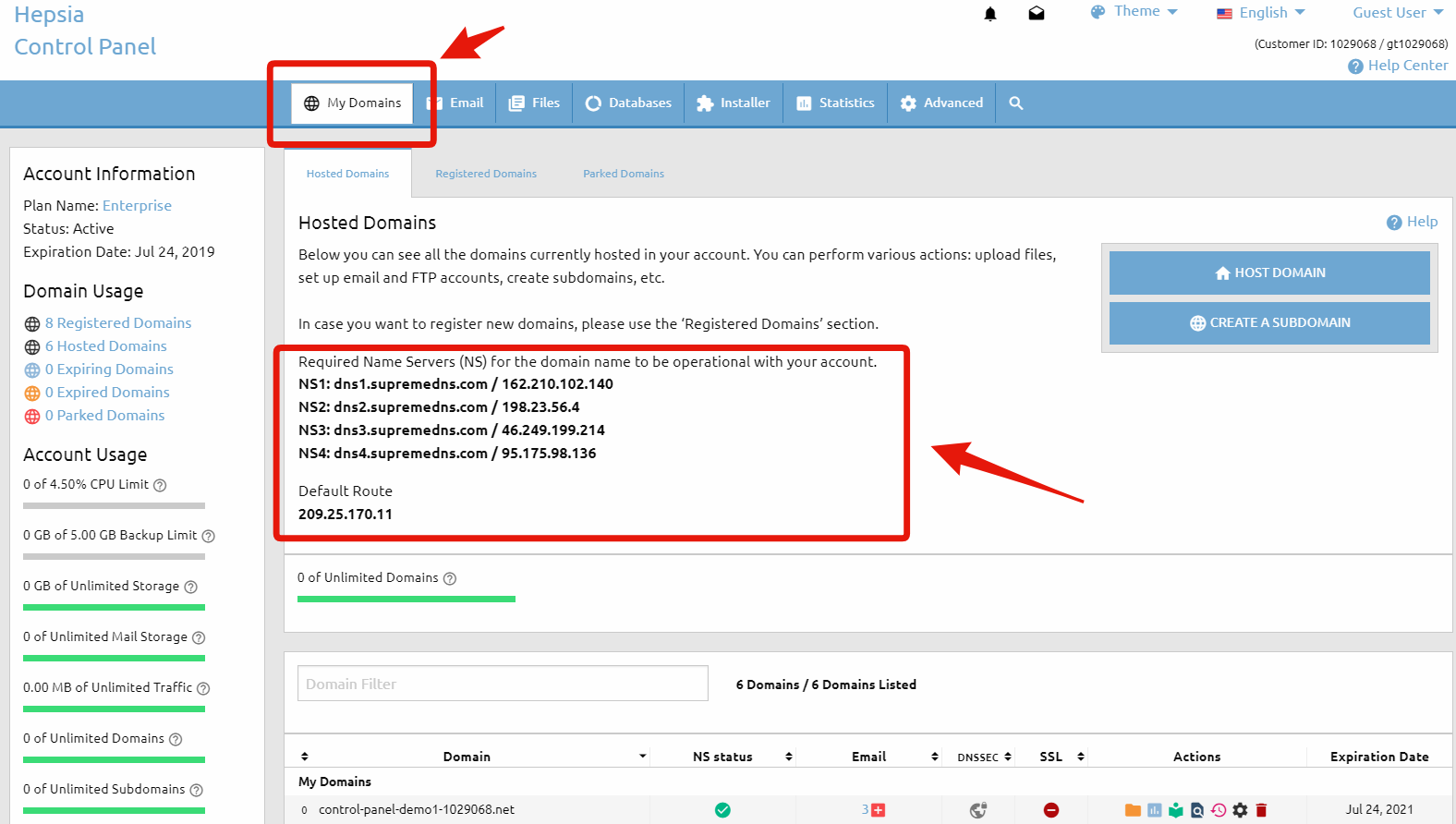
If you wish to host a certain domain name in your account with us, our name servers must be assigned for it so that it works properly. You can easily find the correct name servers that you need in the Hosted Domains section (My Domains > Hosted Domains) of the Web Hosting Control Panel. They are displayed on the left side, above the table that lists all the domain names that have been added to the Hosted Domains section.


correct name servers

If the domain name that you want to host with us is also registered with us or has been successfully transfered to us, you can change the name servers for the domain name via the Domain Manager section (My Domains > Registered Domains) of the Web Hosting Control Panel. For detailed instructions how to do that, please see the article: How to change the Name Servers of a domain name?.

If your domain is registered with another company, you must change the name servers at their end. There should be a Control Panel to manage the domain name and the name servers listed in the Hosted Domains menu must be applied to your domain. If you cannot find such a menu or you experience any problems changing the name servers, you should contact the customer support staff of the company that has registered the domain name for you.

IMPORTANT: Apart from changing the current name servers with ours, in order to host a domain name in your account it must be added to your Hosted Domains. For detailed information about hosting a domain, please refer to the article: How do I host a domain name?.